LensNote
How to Extract Slides from a Video (and Save Them as a PPT)
Recover every slide from a lecture, webinar, or screen recording: the free ffmpeg and VLC methods, the automatic way, and how to turn the slides into a PowerPoint deck.

To extract slides from a video, use a tool that detects when the picture changes and saves one image per slide. Doing it by hand means scrubbing and screenshotting. Free tools like ffmpeg and VLC can save frames automatically; LensNote also removes duplicates and exports the slides as a PPTX deck.
| Method | Cost | Removes duplicates | Output |
|---|---|---|---|
| Screenshots by hand | Free | You do it | Images at your screen's size |
| VLC scene filter | Free | No — saves at a fixed interval | Image files |
| ffmpeg scene detection | Free | Partly — threshold-based | Image files |
| LensNote | Free trial, then from $30/month | Yes, including returns to earlier slides | PPTX deck, PDF or Word report, images in the app |
What does extracting slides from a video mean?
Extracting slides from a video means saving each distinct slide in a recording as its own image. You need slide extraction when someone shares the recording of a lecture, webinar, or Zoom meeting, but not the deck itself.
A good extraction has three properties:
- First, completeness. Every slide is found, including slides shown for only a few seconds.
- Second, one image per slide. A slide building up bullet by bullet, or revisited later, still yields a single image.
- Finally, clean images. No player controls, no cursor, and the video's own resolution, such as 1920 × 1080, rather than the size of your browser window.
Screenshots fail all three. For example, a one-hour webinar with 40 slides means 40 manual pauses, 40 screenshots, and a good chance of missing the slide shown for five seconds before the Q&A. The methods below work on the video file directly instead, so nothing depends on how fast you can hit a shortcut.
How do you extract slides with ffmpeg?
ffmpeg is a free, open-source command-line video tool, available for macOS, Windows, and Linux, and able to save a frame every time the picture changes. The select filter scores how different each frame is from the previous frame; keeping only frames above a threshold gives roughly one image per slide change:
ffmpeg -i lecture.mp4 -vf "select='gt(scene,0.3)'" -fps_mode vfr slide_%03d.png
The threshold (0.3 above, on a scale from 0 to 1) is the hard part. Too low, and every bullet animation or camera wobble creates a new image. Too high, and slides with similar layouts are skipped. For example, a lecture with a webcam picture-in-picture often needs a higher threshold, around 0.4, because the moving speaker changes the frame constantly.
In practice, expect to run the command two or three times on a new kind of recording, then delete near-duplicates by hand in Finder or File Explorer. Step 1 is a short test clip; step 2 is the full video once the threshold looks right. The ffmpeg filter documentation explains the scoring in detail.
How do you extract slides with VLC?
VLC media player is a free video player from the VideoLAN project, with a scene filter able to save a frame at a fixed interval while the video plays. To set up the filter in VLC 3:
- Open Tools → Preferences, and choose Show settings: All.
- Go to Video → Filters → Scene filter. Set the image format, a directory path, and a recording ratio (for example, 300 saves one frame every 300 frames — about every 10 seconds at 30 fps).
- Go to Video → Filters, tick Scene video filter, then save and restart VLC.
- Play the video. VLC writes the images as it plays.
VLC doesn't look at the content of the frames. A slide on screen for two minutes produces about 12 identical images at a 10-second interval, and a slide shown for less than one interval can be missed entirely. In practice, the VLC method suits a quick contact sheet of a video more than a clean slide deck.
How does automatic slide extraction work in LensNote?
Automatic slide extraction means the software decides which frames are new slides, rather than you choosing a threshold or an interval. When you upload a video or record one with the LensNote macOS app, processing runs in five steps:
- Candidate frames are sampled every few seconds and at scene cuts.
- Frames too dark or too bright are dropped.
- Frames are compared to keep one image per slide, and a slide the speaker returns to is not saved twice.
- Each chosen slide is re-captured from the video at up to 2560 pixels wide.
- Each slide is matched to what was said while on screen, and gets a short key message.
Long recordings are thinned out automatically, so a lecture full of near-identical frames still ends up as a readable deck of fewer than about 100 slides, each with a timestamp and its part of the transcript.
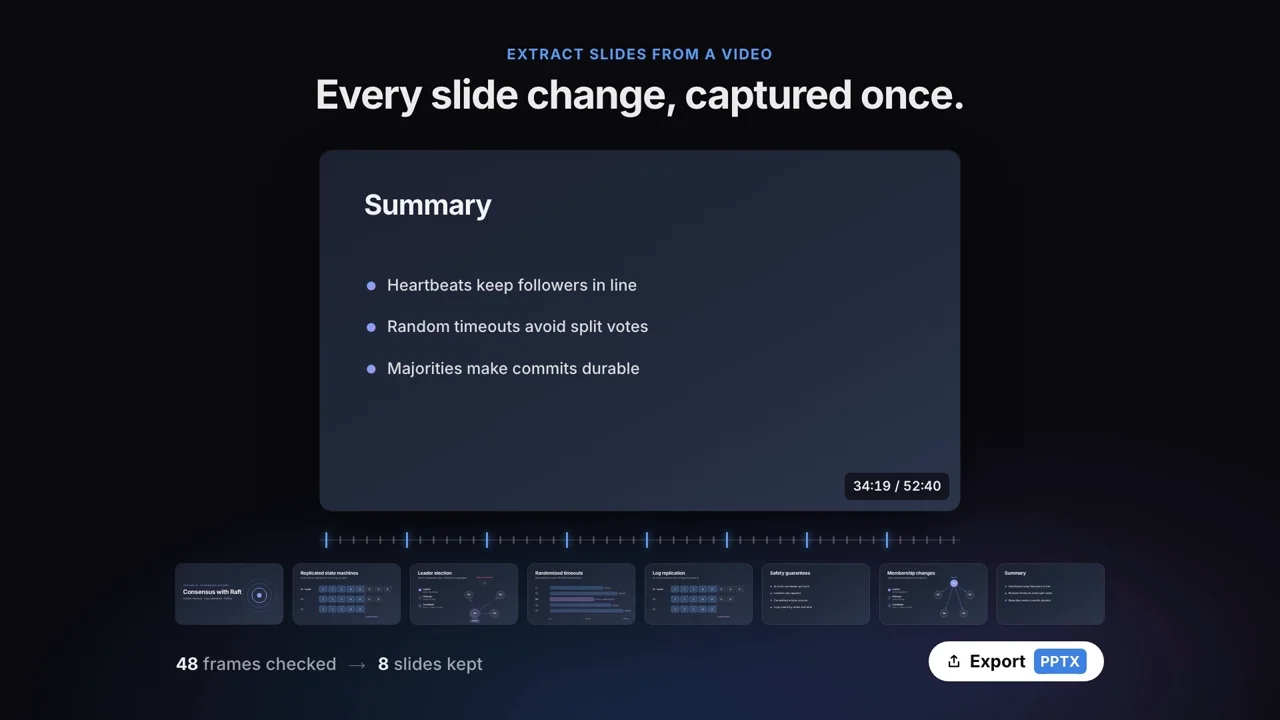
Screen recordings made with the macOS app use settings tolerant of cursor movement and small overlays, so a moving mouse doesn't create new slides. Before exporting, you can remove any slide you don't want, or use Reduce to keep an evenly spaced share of the slides, down to 10%.
How do you turn the slides into a PowerPoint?
Converting a video to PPT means putting each extracted slide on its own PowerPoint slide. There are two ways to do the conversion.
With image files from ffmpeg or VLC: in PowerPoint for Windows, choose Insert → Photo Album, add the images, and PowerPoint creates one slide per picture in a single step. On a Mac, in Keynote, or in Google Slides, insert the images one per slide; a 30-slide deck takes about ten minutes.
With LensNote: open the session and choose Export → PPT. The result is a PPTX file with one slide per key frame as a full-size image, in order. Each slide's key message, bullet points, and explanation sit in the speaker notes, so the deck doubles as a study or presenter version. Pro ($30 per month, or $288 a year) includes unlimited exports; the free trial includes 3.
In both cases each slide is a picture. The text on a slide isn't editable, because the original deck file was never part of the video.
Is it legal to extract slides from a video?
Extracting slides from a video is copying part of someone else's work, so copyright and the platform's terms still apply. Personal study of a lecture you have legitimate access to, such as your own course recording, is generally treated very differently from redistributing the slides. Publishing the deck, selling the slides, or sharing them beyond your course is another matter, and course platforms often forbid downloading recordings at all.
When in doubt, ask the presenter. Many presenters will happily send the original file, which always beats an extraction: editable text, full-resolution images, and the speaker's own notes. For example, a short email after a conference talk, asking for the PDF of the slides, gets a yes more often than people expect. This guide is general information, not legal advice; check your institution's policy for recordings you didn't make yourself.
Frequently asked questions
How do I extract slides from a YouTube video?
Use a copy of the video you are allowed to download, such as your own upload or one offered for download, and run it through ffmpeg or LensNote. LensNote does not import links; on a Mac you can record the playback window with the LensNote app where you have permission.
Can I convert a video to a PPT?
Yes. Extract one image per slide, then put each image on its own PowerPoint slide. LensNote exports a PPTX directly from the video, with one slide per key frame and the notes for each slide in the speaker notes.
How do I remove duplicate slides after extraction?
Raise the ffmpeg scene threshold, or delete near-identical images by hand. LensNote removes duplicates automatically, including slides the speaker returns to later, and lets you delete any remaining slide before you export.
Will the extracted slides have editable text?
No. A video only contains pictures of the slides, so every method produces images. LensNote reads the text on each slide to write its notes, but the exported slides themselves are images.
What is the free way to extract slides from a video?
ffmpeg's scene detection and VLC's scene filter are both free. ffmpeg gives better results but needs the command line; VLC is point-and-click but saves frames at a fixed interval, so expect duplicates.