AI note taker

The AI note taker
that keeps what was shown.

Most AI note takers only listen. LensNote also watches: it captures every slide and shared screen in your lectures, meetings, and long videos, links each one to what was said, and writes notes you can review in minutes.

No download needed · No credit card required · Mac app for macOS 14+

Where most AI note takers fall short

They only hear the recording.

A transcript and a summary capture the words. The slide, the chart, or the code on screen, often the part you came back for, is missing.

They need a bot in the call.

Many meeting assistants join as an extra participant. That needs admitting, announces itself, and is blocked by some organizations.

They are built for one situation.

A meeting assistant does not handle a recorded lecture, and a lecture tool does not handle a client call. You end up with notes in several places.

How LensNote takes notes

  1. 01

    Capture or upload

    Record a window or your screen with the macOS app, or upload a video or audio file in the web app. Nothing joins your calls.

  2. 02

    Slides and transcript

    Every distinct slide or shared screen is captured once, and the speech is transcribed with timestamps in the language that was spoken.

  3. 03

    Notes are written

    Each slide gets a key message and bullet points; the session gets a summary, key takeaways, action items, and a structured report.

  4. 04

    Review, export, share

    Jump from any note back to the recording, export to PDF, Word, PPTX, or TXT, or send a read-only link.

One note taker for every kind of recording

Lectures and courses
Every slide with what the lecturer said about it, ready for exam review.
Meetings
Shared screens, decisions, and action items, recorded without a bot.
Audio
Interviews, calls, and voice memos as transcripts, summaries, and a summary image.
Webinars and long videos
Hours of video turned into a deck of slides and a report you can skim.

What an AI note taker does

An AI note taker turns a recording into notes without you writing them. At minimum it transcribes speech and summarizes it. Better ones add structure: headings, key points, action items, and a way back to the original moment, so you can check any note against what was actually said.

LensNote adds one more layer: what was shown. It detects every slide change and shared screen in a video, keeps one image of each, and pairs it with the part of the transcript spoken while it was on screen. The notes are organized by slide, which is how most lectures and presentations are already structured.
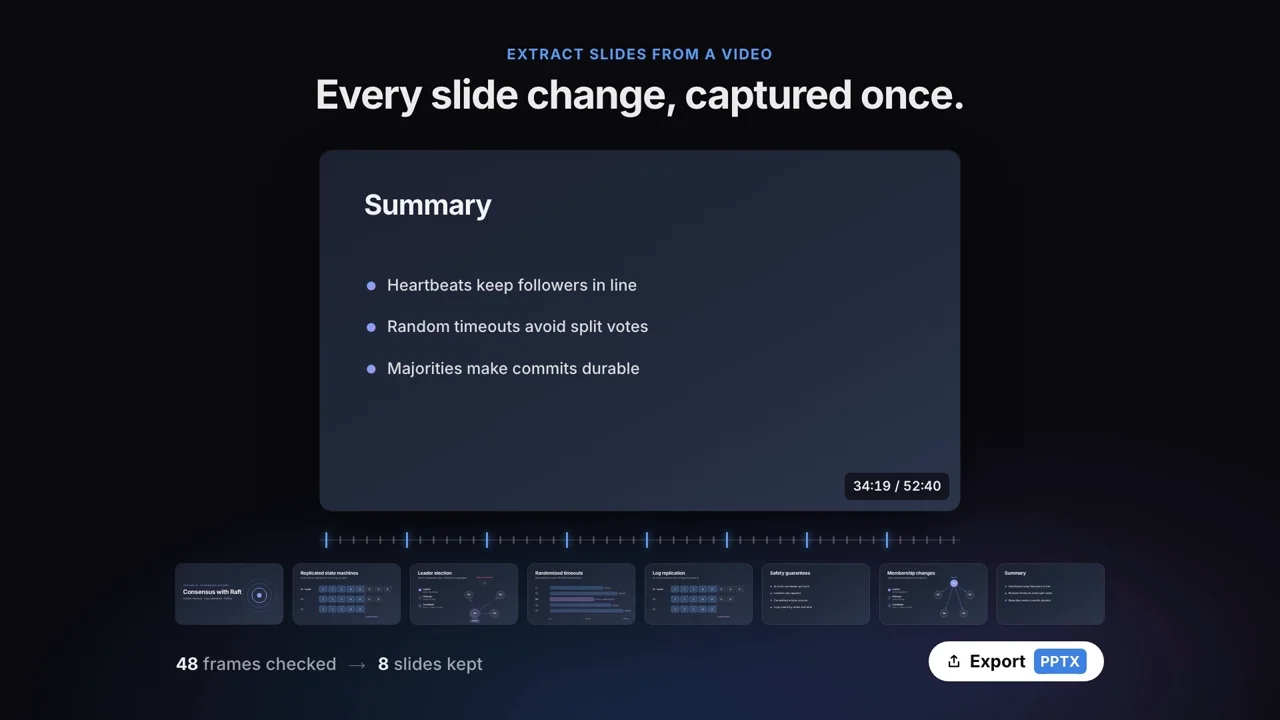
LensNote checks frames across the recording and keeps one image per slide.

How to choose an AI note taker

Start with what you record. If your recordings are mostly conversation, a transcript-first tool may be enough. If slides, screen shares, or diagrams carry the content, as in lectures, demos, and reviews, choose a tool that captures the screen as well as the audio.

Next, check how it captures. Meeting bots are convenient but visible to everyone in the call; local recording on your own computer is not. Then check the limits that matter for you: the longest recording you can process, the monthly allowance, the export formats, and whether your recordings are used to train AI models.

For reference, LensNote’s free trial includes 180 processing minutes with recordings up to 90 minutes; Pro costs $30 a month (or $288 a year) for 1,200 minutes a month and recordings up to 4 hours. Recordings and notes are never used to train AI models.

Lectures, meetings, and audio in one library

Because LensNote handles video and audio the same way, one library holds every kind of recording. Folders keep courses and projects apart, and new sessions are named after their content when processing finishes. Library search covers titles and summaries, and the macOS app also searches inside transcripts.

Each kind of recording has its own guide: taking lecture notes in class or from course videos, turning meetings into notes that keep the shared screen, transcribing meetings without a bot, and turning audio files into notes.

Read next: Lecture note taker · Lecture recording to notes · AI meeting notes · Meeting transcription · Audio to notes

When LensNote is not the right fit

LensNote processes a recording after it is made, so it does not show live captions during a call. If you need a live transcript on screen while people talk, use a tool built for real-time captioning.

The desktop app runs on macOS 14 or later. On Windows or a Chromebook you can upload recordings in the web app, but you cannot record your screen with LensNote. Transcripts and notes cannot be edited inside LensNote, so export to Word when you want to rewrite them. And LensNote works with files, not links, so a video you can only stream needs to be recorded or downloaded first, where you are allowed to.

AI note taker: common questions

What does an AI note taker do?

It turns a recording into notes: a transcript, a summary, key points, and action items. LensNote also captures every slide or shared screen and links each one to what was said about it.

Is there a free AI note taker?

LensNote has a 14-day free trial with 180 processing minutes and no credit card. After the trial, the free plan processes up to 30 minutes a month and keeps all your notes viewable.

Does LensNote join my meetings?

No. The macOS app records the meeting window on your own computer, so no bot appears in the call. You can also upload a recording made with any meeting app.

Can an AI note taker take notes from a video?

Yes. Upload a video file, such as a recorded lecture or webinar, and LensNote returns the slides, a timestamped transcript, a summary, and a structured report.

Does it work on Windows?

Yes for uploads: the web app runs in any modern browser. Recording your screen requires the LensNote macOS app on macOS 14 or later.