 LensNote
How meeting transcription works in LensNote
When a meeting recording reaches LensNote, the audio is extracted and transcribed in short chunks. The spoken language is detected from the opening of the meeting and kept for the rest of it, so the transcript does not switch languages halfway through. Long meetings are split into parts of about 45 minutes and processed in parallel.
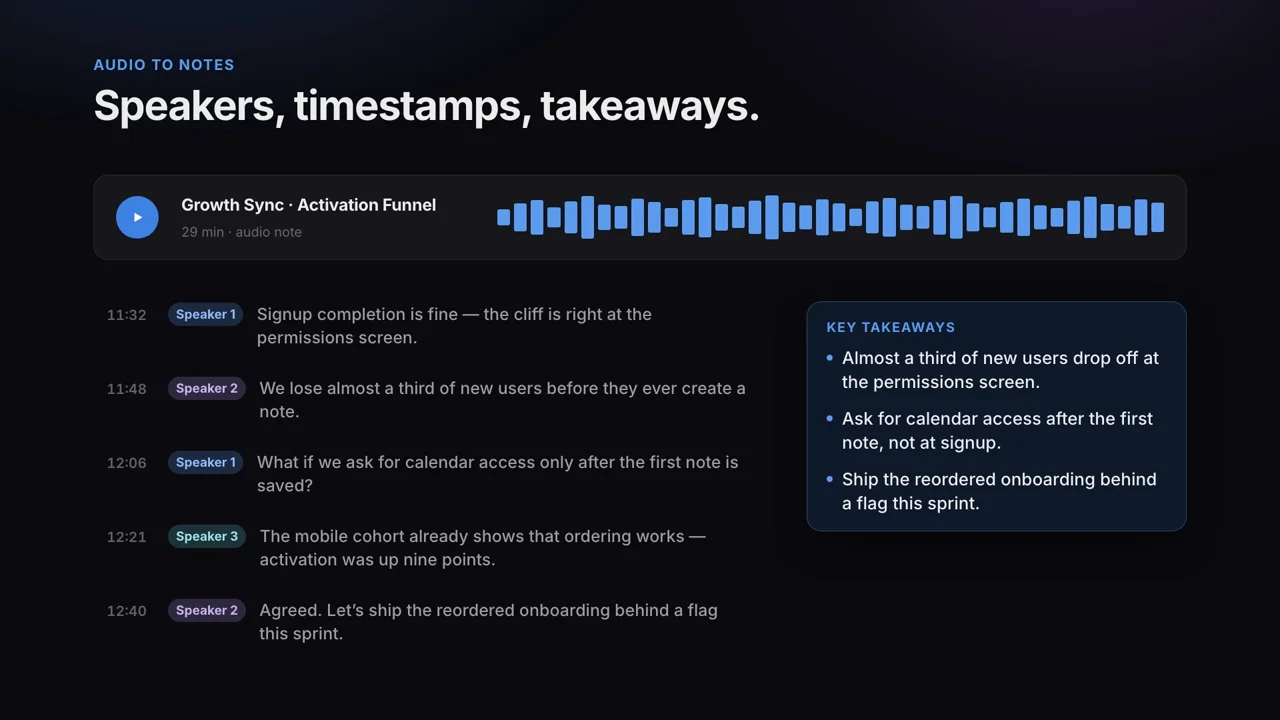
Once the upload has finished you can close the tab; processing keeps running in the cloud, and recordings of 30 minutes or longer send you an email when they are ready. The finished transcript sits in the Transcript tab of the session, with a timestamp on every line and search at the top.
A transcript plus the shared screen
Meeting transcription tells you what was said. When the meeting included a screen share, a video recording gives you more: LensNote also captures every distinct shared screen, such as a deck, a dashboard, or a document, and places each one next to the part of the transcript where it was discussed.
Video sessions also get a summary with action items and a structured report. If the screen matters as much as the conversation, see AI meeting notes with the shared screen; if you only need the words, an audio recording keeps the session small and fast to process.
Read next: AI meeting notes with the shared screen
Getting an accurate meeting transcript
Transcription accuracy depends mostly on the audio. Headsets and microphones close to each speaker produce the cleanest transcripts; a laptop microphone across a conference room produces the noisiest. Crosstalk is the most common source of errors, so meetings where people take turns transcribe best.
When you record with the macOS app, choose System + Mic so remote participants and your own voice are both captured. On macOS 15 or later the two are recorded as separate tracks. Speaker labels are assigned to short stretches of audio, so on a long meeting the same person can appear under more than one label; check names before quoting anyone.
Consent and privacy
Recording a meeting can require the consent of everyone in it, depending on where you and the other participants are and on your organization’s policy. The LensNote macOS app only starts capturing when you press Start, and nothing joins the call, so telling participants is up to you: do it before you record.
Recordings and transcripts are never used to train AI models. Share links are read-only, do not allow downloads, are hidden from search engines, and can be revoked at any time.