 LensNote
What you get from one audio recording
Turning audio into notes in LensNote produces three things. First, a full transcript with timestamps and speaker labels; click any line to replay that moment. Second, a summary with three to six key takeaways and any action items that were mentioned. Third, a summary image: a single 16:9 page that lays out the recording at a glance, ready to drop into a chat or a slide.
The summary image is written in English, or in Chinese for Chinese recordings, and exports at full resolution. The transcript exports as a plain-text file, and you can download the original audio too; on the free plan, original files are kept for 14 days after upload.
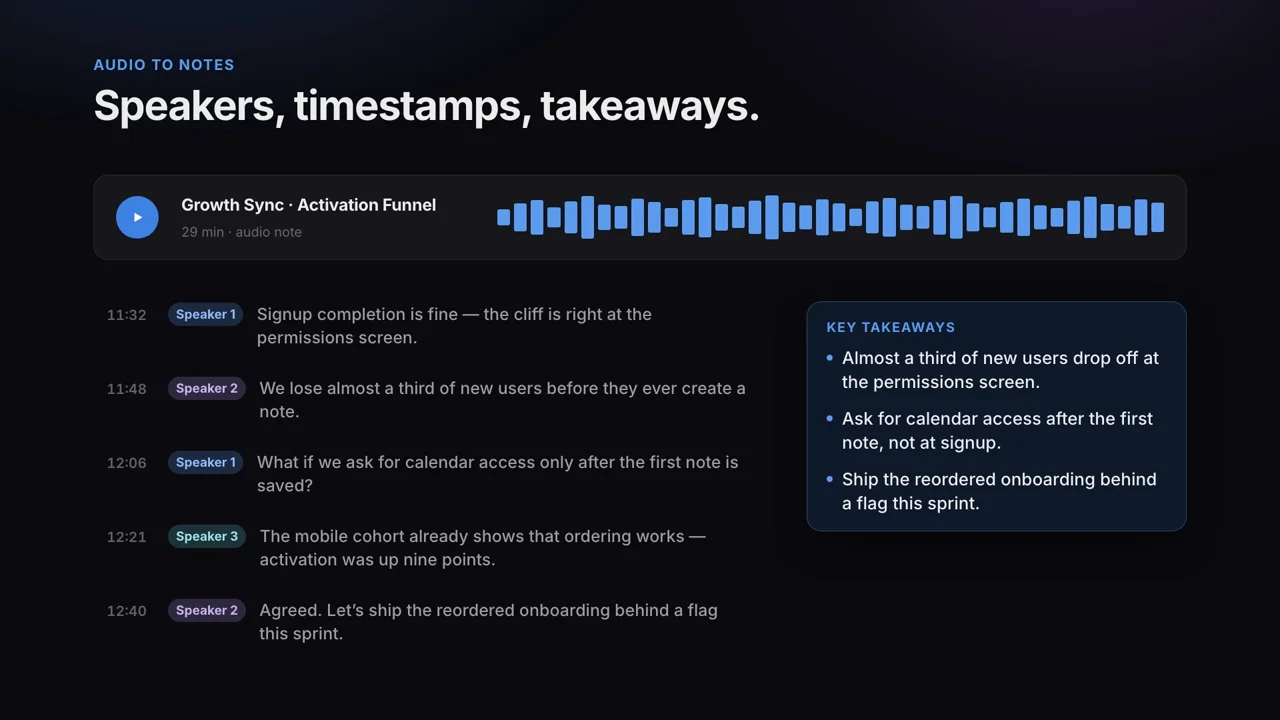
Speaker labels and their limits
Transcripts label voices as Speaker 1, Speaker 2, and so on. Labels are assigned to short stretches of audio, which keeps them accurate within a conversation turn but means the same person can appear under more than one label across a long recording. Labels cannot be renamed, so check who said what against the recording before you quote anyone.
Speaker labels are most reliable when people take turns and each voice is close to a microphone. Crosstalk, speakerphones in large rooms, and heavy background noise all make both the labels and the transcript less accurate.
Recording audio on a Mac or a phone
On a Mac, choose Record Audio in the LensNote app to record your microphone as an M4A file, then Stop & Process to send it straight to your library. On a phone, any voice recorder that exports M4A, MP3, or WAV works: record, then upload the file from the web app.
Files with no audible sound are rejected at import, before they use any minutes. The same length limits apply to audio as to video: up to 30 minutes on the free plan, 90 minutes on the free trial, and 4 hours on Pro.
From transcript to finished notes
For interviews and research calls, the transcript is usually the raw material for something else: a report, an article, or a set of quotes. Export it as plain text, paste it into your notes app, and keep the LensNote session open to replay any quote before you use it.
If you want to ask follow-up questions about a recording, an AI chat assistant works well on top of the exported transcript. The LensNote blog compares what ChatGPT can do with audio directly and where a dedicated tool helps.
Read next: Can ChatGPT transcribe audio?
Audio or video: which to upload
If the recording you have is a video with slides or a shared screen, upload the video instead of extracting its audio. Video sessions add every captured slide, a key message per slide, a structured report, and PDF, Word, and PPTX exports, none of which audio can provide.
Audio is the better choice when there is nothing to see: interviews, phone calls, podcasts you have the rights to use, and in-person conversations. Audio files are also much smaller, up to 2 GB per file compared with 5 GB for video, so they upload faster on a slow connection. Both kinds of session use processing minutes the same way: one minute of recording counts as one minute.