Upload the recording you already have — downloaded from your course portal, a Zoom cloud recording, or a MOOC — and get slide-by-slide notes, a full transcript, and a summary without watching it again.
No download needed · No credit card required · Mac app for macOS 14+
Library
Distributed Systems · Lecture 09
52 min · 38 key frames Share Export
0100:00
0203:42
0306:14
0411:08
0515:56
0621:30
0727:44
0834:19
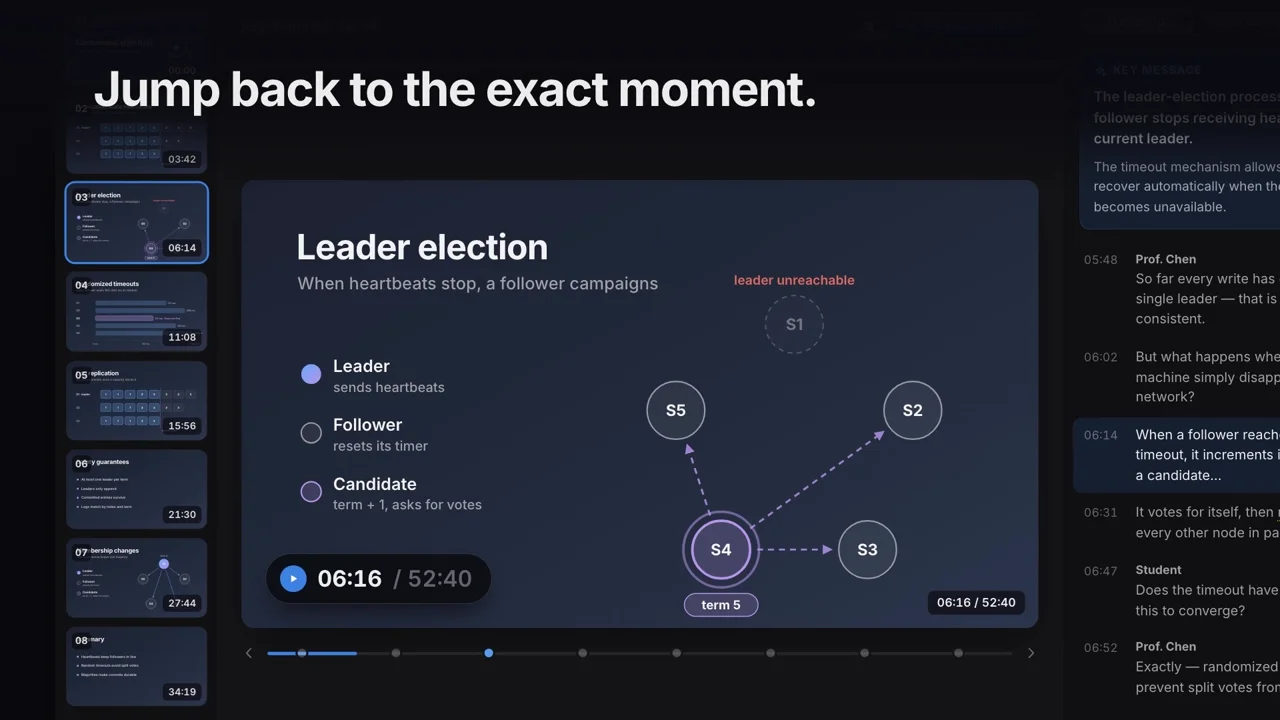
Key frame 03 · 06:14 Play from 06:14
06:14 / 52:40
Key message
The leader-election process begins when a follower stops receiving heartbeats from the current leader.
The timeout mechanism allows the cluster to recover automatically when the current leader becomes unavailable.
05:48Prof. ChenSo far every write has gone through a single leader — that is what keeps the log consistent.
06:02But what happens when that leader machine simply disappears from the network?
06:14When a follower reaches its election timeout, it increments its term and becomes a candidate…
06:31It votes for itself, then requests votes from every other node in parallel.
06:47StudentDoes the timeout have to be randomized for this to converge?
06:52Prof. ChenExactly — randomized timeouts are what prevent split votes from repeating forever.
The problem with a folder full of recordings
Recordings pile up before exams.
Ten weeks of lectures is twenty or more hours of video. Nobody has time to re-watch all of it, even at double speed.
Auto-captions are not notes.
Course portals give you captions at best: a wall of text with no structure, no headings, and none of the slides.
One missing slide costs an hour.
When you only need the formula from week four, you still have to scrub through the whole lecture to find where it appeared.
From recording to notes in four steps
01
Upload the file
MP4, MOV, M4V, MKV, AVI, WebM, or MPEG up to 5 GB. Before anything uploads, LensNote checks the length against your plan, so you never wait on a file that cannot be processed.
02
Processing runs on its own
Slide detection, transcription, and alignment run in the cloud. Once the upload finishes you can close the tab; recordings of 30 minutes or longer email you when the notes are ready.
03
Read the lecture slide by slide
The structured report walks through each slide with what the lecturer said about it. Click any slide to play the original moment.
04
Export the format you study with
The structured report as a PDF or an editable Word document, the slides as a PPTX deck with the notes in the speaker notes, or the transcript as plain text.
Example output
Flip through a finished lecture note.
This is what LensNote produces from one recorded lecture: every slide once, its key message, and the words spoken while it was on screen. Click a slide to read its notes.
Distributed Systems · Lecture 09Example output
52 min · example lecture
Consensus with RaftLeader election · Log replication · Safety
00:00
Key message
Raft keeps a cluster of servers agreeing on one log, even when some of them fail.
A leader accepts every client write
Followers copy the leader’s log
Safety rules decide what can never be lost
What was said · 00:00
“Today is about one question: how do five machines agree on the same sequence of commands when any of them can crash?”
Replicated state machinesEvery server applies the same log, in order
03:42
Key message
If every server applies the same commands in the same order, they all end up in the same state.
The log is the source of truth
Order matters as much as content
Consensus is the problem of agreeing on the log
What was said · 03:42
“Think of the log as a recipe. Follow the same steps in the same order and every kitchen ends up with the same dish.”
Leader electionWhen heartbeats stop, a follower campaigns
06:14
Key message
The leader-election process begins when a follower stops receiving heartbeats from the current leader.
Followers expect regular heartbeats
A missed heartbeat starts an election
The candidate asks every node for a vote
What was said · 06:14
“When a follower reaches its election timeout, it increments its term and becomes a candidate.”
Randomized timeoutsEach follower waits 150–300 ms at random
11:08
Key message
Random election timeouts make it unlikely that two followers start an election at the same moment.
A tie splits the vote and nobody wins
Randomness spreads candidates out in time
Split votes resolve within a few rounds
What was said · 11:08
“Randomized timeouts are what prevent split votes from repeating forever.”
Log replicationAn entry commits once a majority stores it
15:56
Key message
A log entry is committed once a majority of servers have stored it, and then it is never lost.
The leader sends new entries to every follower
A majority acknowledgment commits the entry
Committed entries survive a leader crash
What was said · 15:56
“Once three of our five servers have written the entry, we can safely tell the client it succeeded.”
Executive summary
Raft solves consensus by electing a single leader that orders every write. Followers start an election when heartbeats stop, and random timeouts keep elections from colliding. An entry is committed once a majority stores it, which is why committed data survives the loss of a leader.
Why a leader?
A single leader turns agreement into a simple rule: the leader decides the order of the log and everyone else copies it.
Elections without collisions
Followers wait a random 150–300 ms before campaigning, so one candidate usually asks for votes before any other wakes up.
What “committed” means
An entry stored on a majority of servers is committed; any future leader must already hold it, so it is never lost.
The full report continues section by section, with each slide placed as a figure.
PPTX
One slide per key frame as an image, with the key message, bullets, and explanation in the speaker notes.
PDF
The structured report: a cover with the executive summary, then each section with its slides as figures.
Word
The same report as an editable DOCX file, for rewriting in your own words.
TXT
The full timestamped transcript as plain text, for Notion, Obsidian, or a doc.
Maximum recording length by plan
Free
Up to 30 minutes per video, 30 minutes of processing per month.
Free trial (14 days)
Up to 90 minutes per video, 180 processing minutes in total.
Pro
Up to 4 hours per video, 1,200 processing minutes per month.
What you get from one lecture recording
Turning a lecture recording into notes in LensNote produces four connected views of the same class, all aligned to one timeline, so you can move between them without losing your place.
The Slides tab shows a filmstrip of every captured slide and the selected one at full size, labeled with its timestamp. Next to it, the Key points panel shows the slide’s key message, up to three bullet points, and the part of the transcript spoken while it was on screen. The Transcript tab lists the whole lecture with timestamps. The Summary tab collects the key takeaways and any action items, such as assignments the lecturer mentioned.
Finally, the Report tab walks through the lecture section by section: an executive summary first, then each part of the class with its slides as figures. This is the view most students use for revision, and it is what the PDF and Word exports contain.
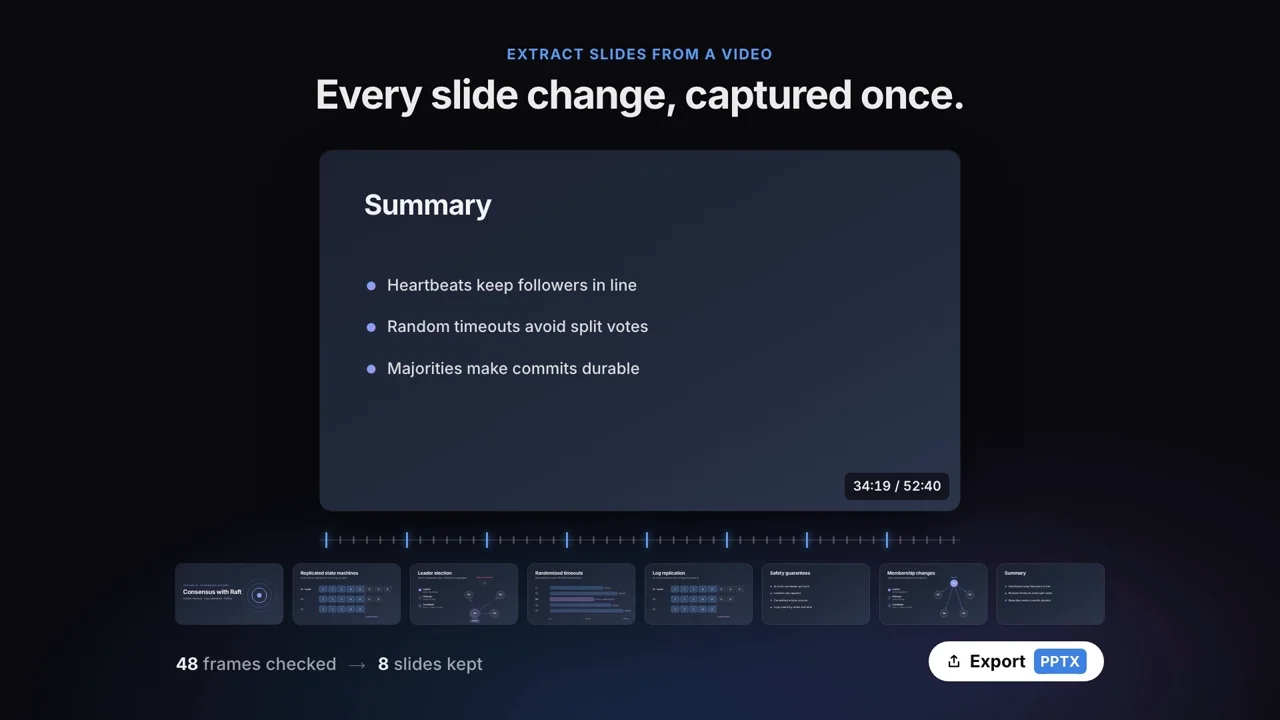
LensNote checks frames across the whole recording and keeps one image per slide.
Jump from any note back to the recording
Notes generated by AI are a starting point, not the final word, so every part of a LensNote session links back to the source. Click Play on a slide and the recording starts at the moment that slide appeared. Click any transcript line to hear it again.
That link changes how you revise. Instead of re-watching a 90-minute lecture, you read the slide-by-slide notes and replay only the two or three moments you did not understand, for as long as it takes to resolve them.
Every slide links back to its moment in the lecture recording.
Where lecture recordings come from
Most lecture recordings live in a learning platform such as Canvas, Moodle, Blackboard, or Panopto, or in a Zoom cloud recording. When the platform offers a download, save the MP4 file and upload it to LensNote; MP4, MOV, M4V, MKV, AVI, WebM, and MPEG are all supported.
Some courses only let you stream a recording. In that case, and where your course policy allows recording, play the lecture in your browser and record the playback window with the LensNote macOS app. LensNote does not import links directly, so a downloaded file or a screen recording is always the route in.
Getting the best notes from a recording
Clear audio matters more than anything else. A lecture recorded from the room microphone or a headset transcribes far better than one captured across a noisy hall. Slide capture works best when the slides fill most of the frame. Screen recordings made with the macOS app tolerate cursor movement and small overlays, but a tiny slide in the corner of a camera shot gives less to work with.
Long lectures are split into parts of about 45 minutes and processed in parallel, and a lecture full of near-identical frames is thinned out so the deck stays readable. If a recording has no audible sound, you still get visual notes without a transcript; if no slides are found, the recording is treated as an audio session with a transcript and summary.
Converted notes are most useful when you test yourself on them. A simple routine works: skim the slides and key messages within a day of the lecture, write your open questions, and each week try to explain the key messages from memory. Before the exam, replay only the timestamps behind the questions you still miss.
For more on study methods, read how to take lecture notes with the Cornell and slide + explanation methods, and how to take notes from a video lecture with timestamps, both on the LensNote blog.
Video: MP4, MOV, M4V, MKV, AVI, WebM, and MPEG up to 5 GB. Audio: MP3, WAV, M4A, AAC, FLAC, OGG, OPUS, and WebM up to 2 GB. Audio-only files produce a transcript, a summary, and a summary image instead of slides.
My course portal only lets me stream the lecture. What can I do?
LensNote processes files; it does not fetch links. If your course allows it, record the playback window with the LensNote macOS app, which captures the video and system audio together.
How long does processing take?
It depends on the length of the recording. Once the upload has finished you can close the tab: processing keeps running, and recordings of 30 minutes or longer send an email when the notes are ready.
What if the lecture is longer than my plan allows?
Pro subscribers can buy a long-video pass that lifts the limit to 8 hours for a single video.
Do I keep my notes after the trial ends?
Yes. Your notes, slides, and transcripts stay viewable on the free plan. On the free plan, original video files are removed 14 days after upload.
 LensNote