 LensNote
What useful meeting notes contain
Useful meeting notes answer three questions for someone who was not there: what was decided, who does what next, and what material the decision was based on. Most AI meeting notes cover the first two from the conversation alone and lose the third.
LensNote keeps all three. The summary lists key takeaways and a To Do list of action items, with an owner and a timestamp when the meeting names them. Every distinct screen that was shared, such as a deck, a dashboard, or a document, is captured once and placed next to what was said about it, so the numbers behind a decision stay in the notes.
Recording a meeting without a bot
The LensNote macOS app records the meeting window on your own computer, so nothing joins the call and nothing appears in the participant list. Choose New Recording, select the Zoom, Google Meet, Microsoft Teams, or Webex window, and pick an audio source: System + Mic captures everyone, including you.
On macOS 15 or later, system audio and your microphone are recorded as separate tracks; on macOS 14, your microphone is recorded from the built-in mic alongside the screen. If you only care about the shared screens, Video Only skips transcription. Whatever you choose, follow local recording laws and your company’s policy, and get consent before recording others.
Sharing notes with people who missed the meeting
Create a read-only share link from any finished session. Anyone with the link can open the recording, the captured screens, the report, and the full transcript without an account; they cannot download files, and shared pages are hidden from search engines. You can revoke a link at any time from the Shared links page.
For a document instead of a link, export the structured report as a PDF or an editable Word file. It opens with an executive summary and follows the meeting section by section, with the shared screens as figures.
Audio-only calls
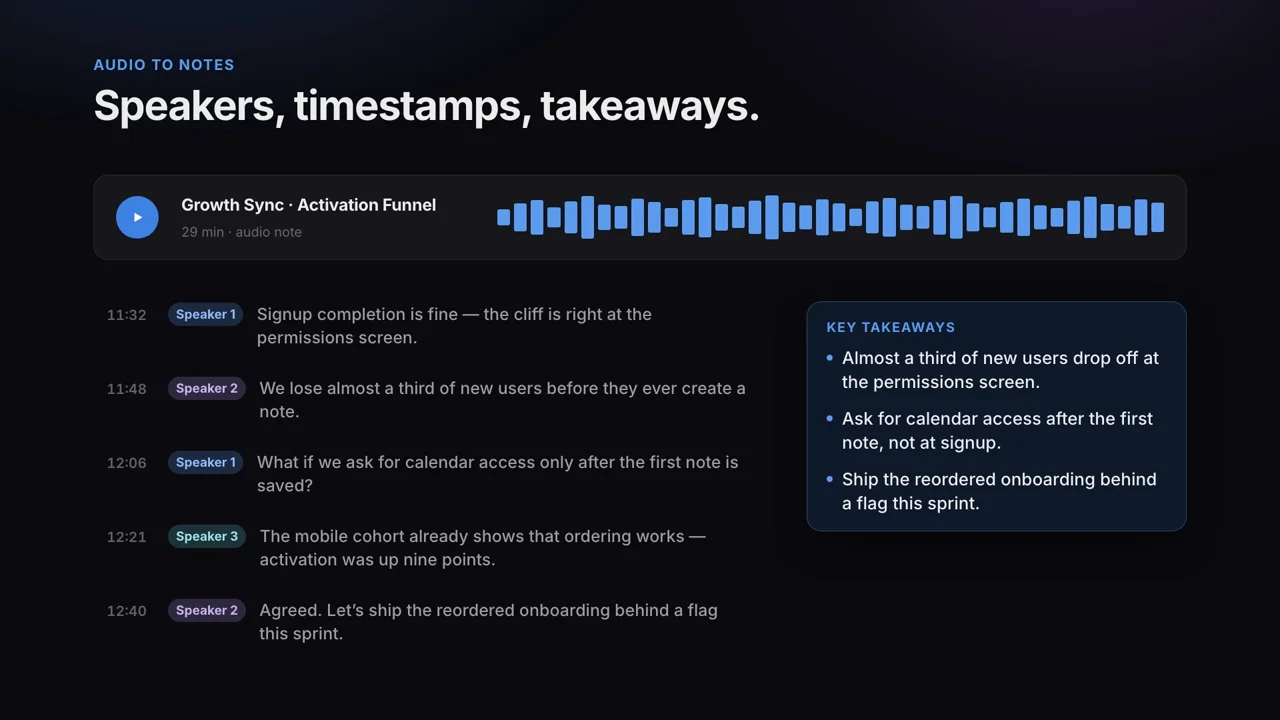
Not every meeting has a screen worth keeping. For phone calls and in-person conversations, upload the audio file instead. Audio sessions produce a transcript with speaker labels, a summary with key takeaways and action items, and a one-page summary image you can share with the team.
Notes for recurring meetings
Weekly syncs, sprint reviews, and client check-ins are where meeting notes pay off most, because the useful question is rarely about one meeting. It is about what changed since last time. Keep each recurring meeting in its own folder in your library, so every session for that project sits together in date order.
Library search in the web app matches session titles and summaries, and in the macOS app it also looks inside transcripts. Before the next meeting, open the last session, check its To Do list, and replay the moment a decision was made instead of relying on memory. Each session is named after its content when processing finishes, so the folder reads like an agenda history.