 LensNote
How to use a lecture note taker across a semester
A lecture note taker works best as a weekly routine rather than a last-minute rescue. Record or upload each class on the day it happens, so the notes are ready while the lecture is still fresh. Within a day, skim the captured slides and their key messages, and write down anything that still does not make sense.
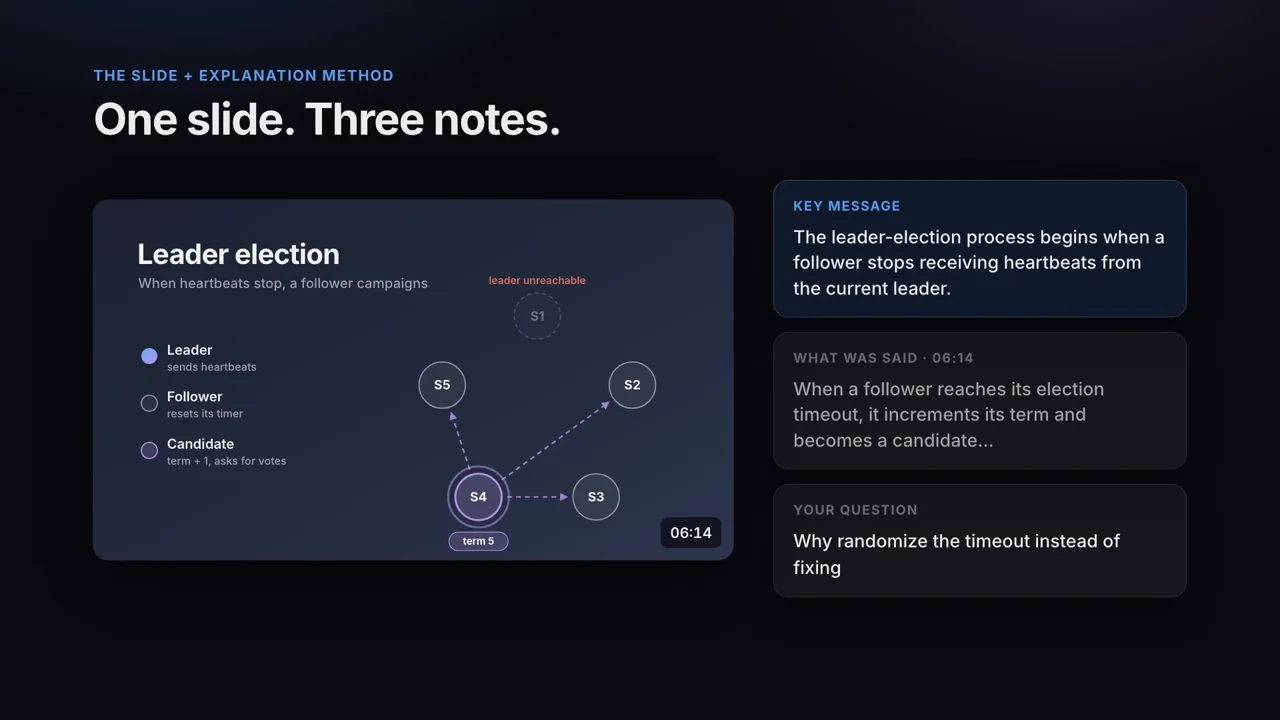
Create one folder per course in your library. When a newly processed session is not in a folder yet, LensNote may file it into one of your existing folders automatically, so a full semester stays organized without extra work. Before an exam, open the structured report for each lecture: it walks through the class slide by slide, with what was shown and what was said side by side.
Online, recorded, and in-person lectures
Online lectures are the easiest case. In the LensNote macOS app (macOS 14 or later), choose New Recording, pick the Zoom, Teams, or browser window, and keep the audio source on System + Mic so both the lecturer and your own questions are captured.
Recorded lectures from a course portal are just as simple: download the MP4 or MOV and upload it. Files can be up to 5 GB, and a recording can run up to 90 minutes on the free trial or 4 hours on Pro.
For in-person classes without a recording, capture the audio on your phone or with the macOS app and upload it. Audio sessions give you a transcript, a summary with key takeaways, and a one-page summary image. Slide capture needs video, so keep the lecturer’s slide deck next to the audio notes when it is shared.
Why slide-by-slide notes beat a transcript
A transcript records every word, which is exactly why it is hard to study from: a 90-minute lecture produces many thousands of words with no structure. Slides already carry the structure of a lecture, so LensNote uses them as the backbone of your notes.
Each slide is captured once, re-captured from the video at up to 2560 pixels wide, and paired with the part of the transcript spoken while it was on screen. A short key message sums up the point, and up to three bullet points hold the details. Search finds a slide by its title, its notes, or the words said while it was shown, and Play takes you back to that exact moment in the recording.
Exporting notes for exam prep
When you want your notes outside LensNote, export them in the format you study with. The structured report exports as a PDF to print or annotate on a tablet, or as an editable Word document if you prefer to rewrite explanations in your own words.
The slides export as a PPTX deck with each slide as an image and its notes in the speaker notes, which works well for quick review sessions. The full transcript exports as plain text for Notion or Obsidian. The free trial includes 3 exports; Pro includes unlimited exports.