LensNote
How to Take Notes from a Video Lecture (Without Rewatching It)
Video lectures let you pause, rewind, and speed up — if you take notes the right way. A timestamp-first workflow, the research on 2× speed, and how to automate it.
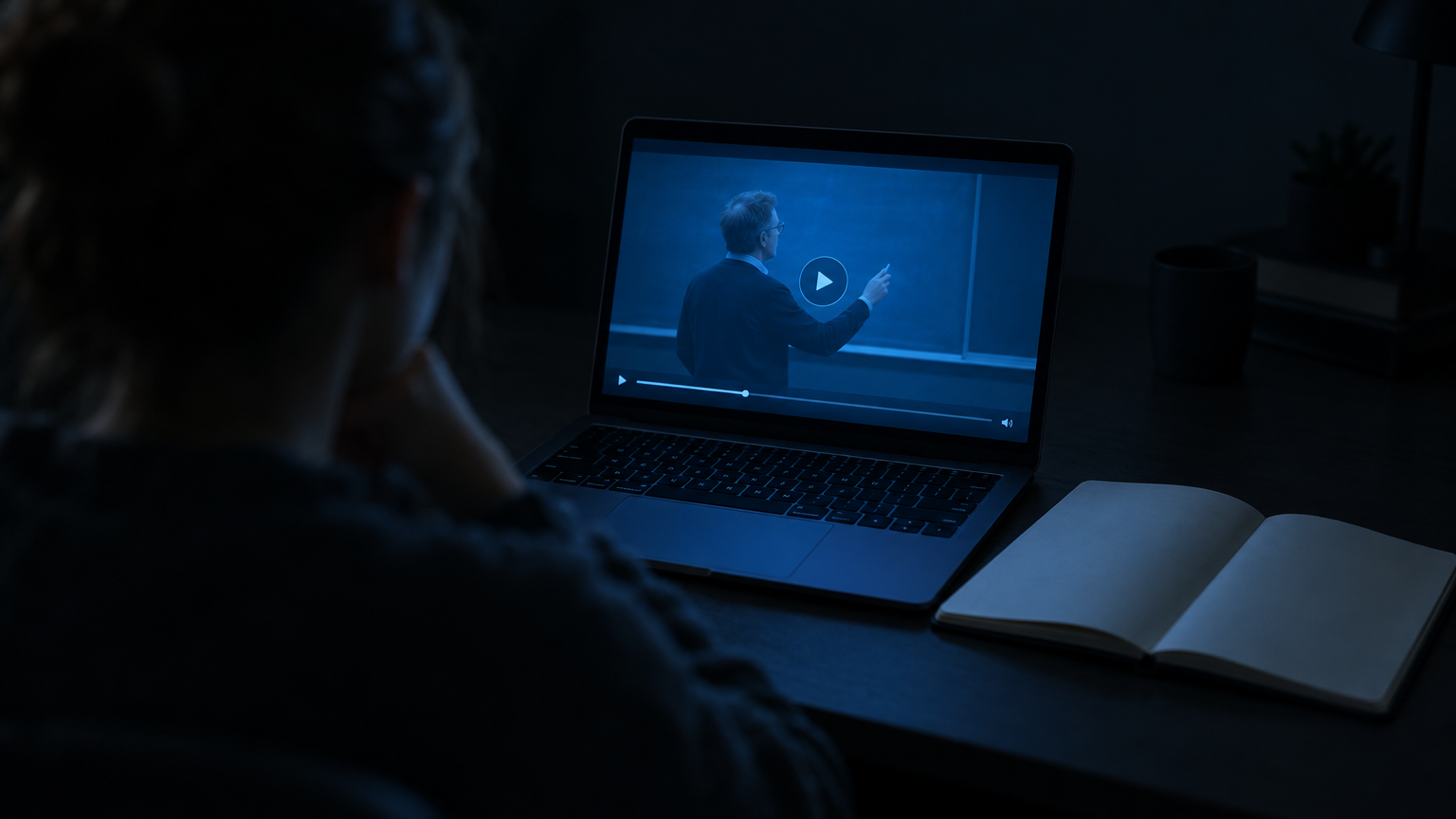
To take notes from a video, skim it first, then watch with a goal: pause at each new slide or idea, write the point in your own words next to its timestamp, and capture any slide or diagram you'll need. Timestamps are what make video notes useful — they let you re-hear any part without rewatching.
| Step | What you do | Why it matters |
|---|---|---|
| 1. Skim | Check chapters, slides, or the transcript | You know the structure before you start |
| 2. Timestamp | Write [mm:ss] next to every note | Any note leads back to the source |
| 3. Capture visuals | Save the slides and diagrams | Most of the content is on screen |
| 4. Question | End each section with one question | Turns notes into a self-test |
How are notes from a video different from live lecture notes?
Taking notes from a video is different from live note-taking because you control time. In a live lecture you have to keep up; with a recording on YouTube, Canvas, or Panopto you can pause, rewind, and change the speed. Control removes the main excuse for transcribing. The new risk is the opposite one: spending two hours on a one-hour video by pausing at every sentence.
The goal is to use the control selectively:
- First, watch at a steady pace instead of stopping constantly.
- Second, pause only at a new idea, a new slide, or a worked example.
- Finally, rewind only when you genuinely didn't follow the explanation.
For example, a 60-minute recorded lecture with 25 slides needs roughly 25 short pauses, one per slide, not 200. Everything in this guide is about getting the benefits of a recording without paying for them in hours.
For lectures you attend in person, see how to take lecture notes.
Step 1: Skim the video before taking notes
Skimming a video means getting the structure before watching properly. Spend two or three minutes on three sources:
- Chapters, if the video has them. YouTube shows chapters as segments on the progress bar.
- The slides, if the lecturer shared them, or the first five minutes, where most lecturers outline the session.
- The transcript, if available. On YouTube, open the description and choose Show transcript; scrolling the text shows where the main topics start.
Write the main topics down as headings with their start times, such as "04:10 Supply and demand" and "22:35 Elasticity". The headings become an outline to fill in, and show which parts deserve the most attention. For example, a skim might reveal the first 15 minutes are a recap of last week, which you can watch at 2× or skip. Step 1 costs a few minutes and saves far more.
Step 2: Take timestamped notes
A timestamped note is a note paired with the moment in the video it refers to, like [14:32] Randomized timeouts prevent split votes. Add a timestamp to every note. Writing one takes a second and changes how you review: instead of searching the video, you jump straight to the moment.
Three rules keep timestamped notes useful:
- Short and in your own words, ideally one line per idea.
- Explanation only when needed, meaning when the point is not obvious from the slide.
- A question mark for anything unclear, so open items stand out later.
For example, notes on a 45-minute statistics video might be 30 lines, five marked with "?". When you review, read the notes first, then re-watch only the five marked timestamps, for as long as resolving each one takes. Apps like Notion, Obsidian, and OneNote handle the format well, and on YouTube a link with "&t=872s" opens the video at 14:32.
Step 3: Capture the visuals
Capturing the visuals means saving the slides, diagrams, code, and equations shown in the video, because a transcript misses every one of them. In most lectures the screen carries the structure: definitions, worked examples, and the figures you'll be asked about in the exam.
Pausing to screenshot every slide is slow, and the screenshots come out at your window's size. Two better options:
- If the deck is available, download the file and write your notes in the speaker notes of each slide, in PowerPoint, Keynote, or Google Slides.
- If the deck isn't available, extract the slides from the video file. See how to extract slides from a video for free methods using ffmpeg or VLC, and the automatic one.
Put each slide next to the notes belonging to it. For example, a chemistry lecture with 20 slides becomes 20 pairs: the slide image plus two lines of your own explanation, usually all you need to revise each part.
Should you watch lecture videos at 2× speed?
Watching lecture videos at higher speed costs less understanding than most people expect. A study by Murphy and colleagues (2022) at UCLA, published in Applied Cognitive Psychology, found students who watched lecture videos at 1.5× or 2× did about as well on comprehension tests as students watching at normal speed. Performance dropped at 2.5×.
Two caveats apply. First, speed helps most on content you partly know, so slow down for new or difficult sections. Second, speed is no substitute for engagement: a 2× video watched half-attentively teaches less than a 1× video with notes.
In practice, a workable rule has three steps:
- Start at 1.5×.
- Slow to 1× when you find yourself pausing every minute.
- Speed up to 2× when you stop pausing at all.
At 1.5×, a 60-minute lecture takes 40 minutes; at 2×, 30 minutes, leaving time for the review step that makes notes stick.
How can you convert video lectures into notes automatically?
Converting video lectures into notes automatically means letting software do steps 2 and 3: transcribing with timestamps, capturing each slide once, and matching the two. LensNote converts a video file, or a screen recording made with the LensNote macOS app (macOS 14 or later), into slide-by-slide notes.
Every captured slide links to the moment the slide appeared. Click Play on a slide, and the video starts from that moment, so the timestamp workflow above comes built in.
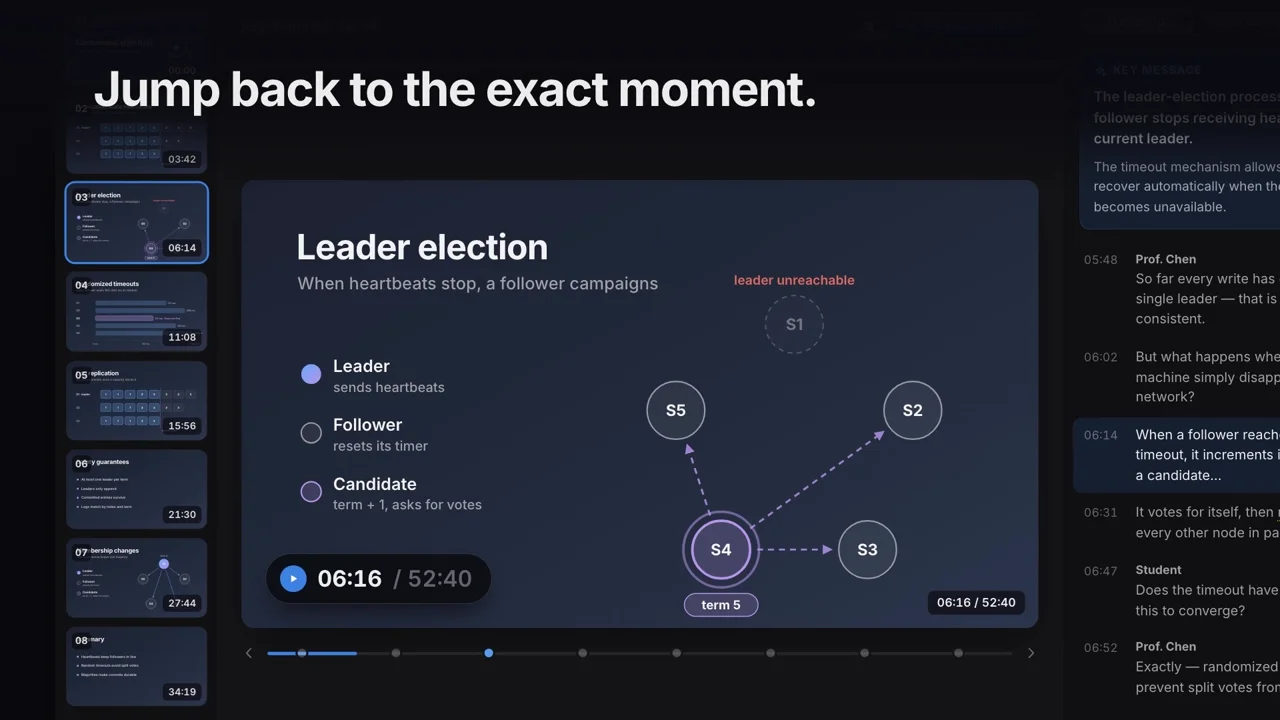
You still do the part that makes you learn: reading the key messages, checking each one against the recording, and writing your own questions. Export the result as a PDF or Word report, a PPTX deck, or a plain-text transcript for Notion or Obsidian. For example, the 14-day free trial includes 180 processing minutes, enough for three 60-minute lectures. See lecture recording to notes for formats and limits.
How do you turn video notes into study material?
Turning video notes into study material means converting the notes into something you can test yourself with. Three simple formats work well:
- Question list — rewrite each note as a question, with the answer and timestamp underneath.
- Flashcards — one slide or key message per card, with your explanation on the back. Anki accepts images on cards, so extracted slides drop straight in.
- One-page summary — the five to ten ideas from the whole video that matter most.
Do the conversion within a day or two of watching, while the context is still fresh. Then review the questions weekly, and re-watch only the timestamps behind the questions you get wrong. For example, 30 timestamped notes from a lecture become 30 questions, and any question you still miss is one click away from the moment in the video that answers it.
Frequently asked questions
How do I take notes from a YouTube video?
Skim the chapters or transcript first, then write short notes with a timestamp next to each one, and save the slides or diagrams you need. YouTube's own transcript panel helps you find where topics start.
What is the fastest way to take notes from a video?
Skim the video first, watch at 1.5× speed, pause only at new ideas, and write short timestamped notes. For slide-based lectures, software that captures each slide and aligns it with the transcript saves the most time.
Can AI take notes from a video?
Yes. Tools like LensNote transcribe a video, capture each slide, and write a short key message for every slide, with links back to the original moment. Check AI notes against the recording before relying on them for an exam.
How do I add timestamps to my notes?
Write the time from the video player in brackets before each note, like [12:05]. Some note-taking tools and AI note takers add timestamps automatically and let you click them to play that moment.
Should I take notes while watching or after?
While watching, but briefly: short notes with timestamps. After watching, spend a few minutes turning them into questions. Watching first and taking all notes afterwards usually means watching twice.